

 Jinba Flow
 Jinba App
 Jinba Toolbox
What is Task Management
The Task Management screen allows you to schedule and automate agent execution. You can manage automatic execution of regular tasks and processing at specified times.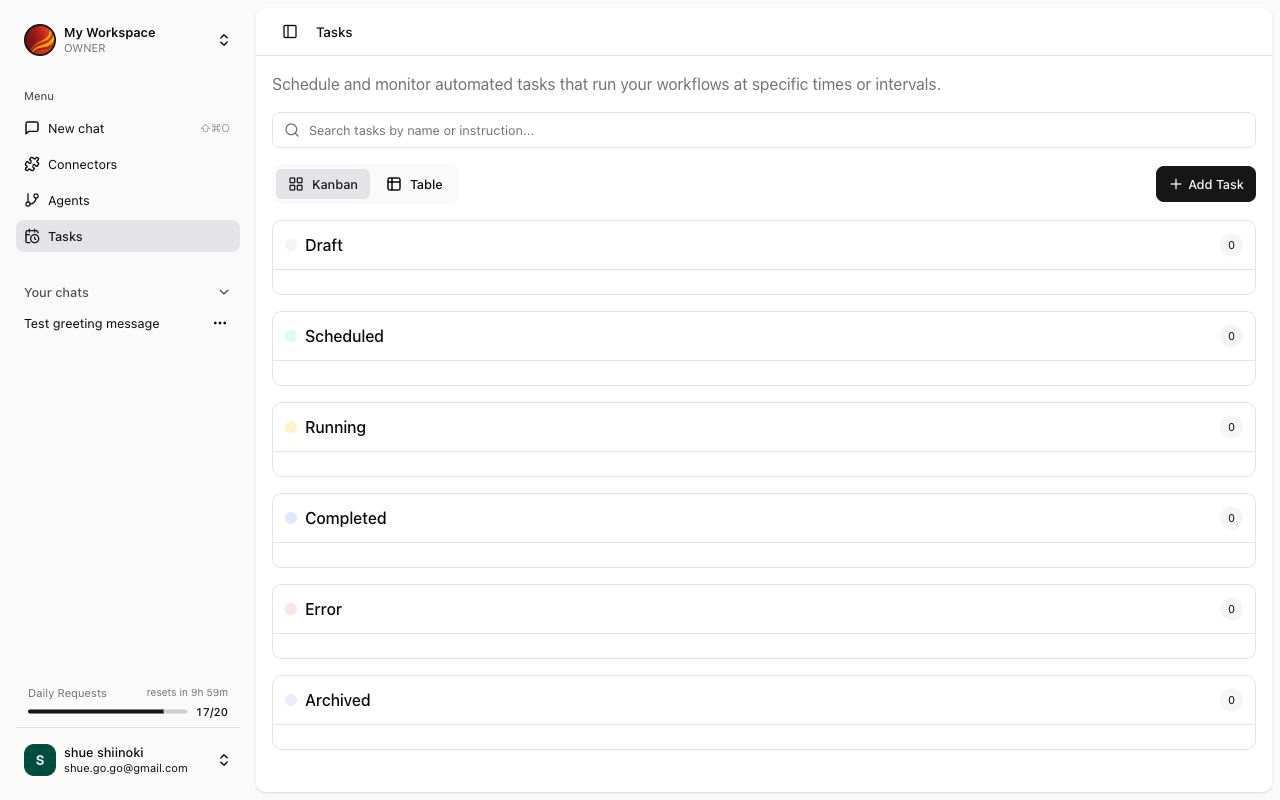
What are Tasks
Tasks are units that manage agent execution. They consist of the following elements:Screen Layout
The Task Management screen has a search box (“Search tasks by name or instruction…”), an “Add Task” button and a view toggle (“Kanban” / “Table”).Kanban View
Tasks are shown as cards in columns, one per status: Draft, Scheduled, Running, Completed, Error and Archived. Drag a card to another column to change its status. Each card shows:- Task name
- Next run time (or “Not scheduled”)
- A menu (⋮) with “Edit”, “View History” and “Delete”
Table View
The same tasks in a table with the columns Title, Agent, Status, Schedule Type (One-time / Recurring), Next Run, Last Run and Created.Drafts
Tasks in the “Draft” column have no active schedule yet. For more details, see Draft Management.Scheduled
Tasks in the “Scheduled” column run automatically on their schedule. For more details, see Scheduled Execution.Accessing Task Management
1
Click 'Tasks' in the Side Panel
Select “Tasks” from the side menu.
2
Task Management Screen Appears
The task list is displayed.
Key Features
Creating Tasks
Create new tasks
Draft Management
Edit and manage draft tasks
Scheduled Execution
Set task execution times
Task Use Cases
Weekly Report Auto-generation
Weekly Report Auto-generation
- Agent: Sales Report Creation Agent
- Initial Input: “Please create this week’s sales report”
- Execution Time: Every Friday at 17:00
Daily Data Aggregation
Daily Data Aggregation
- Agent: Data Analysis Agent
- Initial Input: “Please aggregate yesterday’s sales data”
- Execution Time: Every day at 9:00
Monthly Report Creation
Monthly Report Creation
- Agent: Report Creation Agent
- Initial Input: “Please create last month’s activity report”
- Execution Time: 1st of every month at 10:00