

 Jinba Flow
 Jinba App
 Jinba Toolbox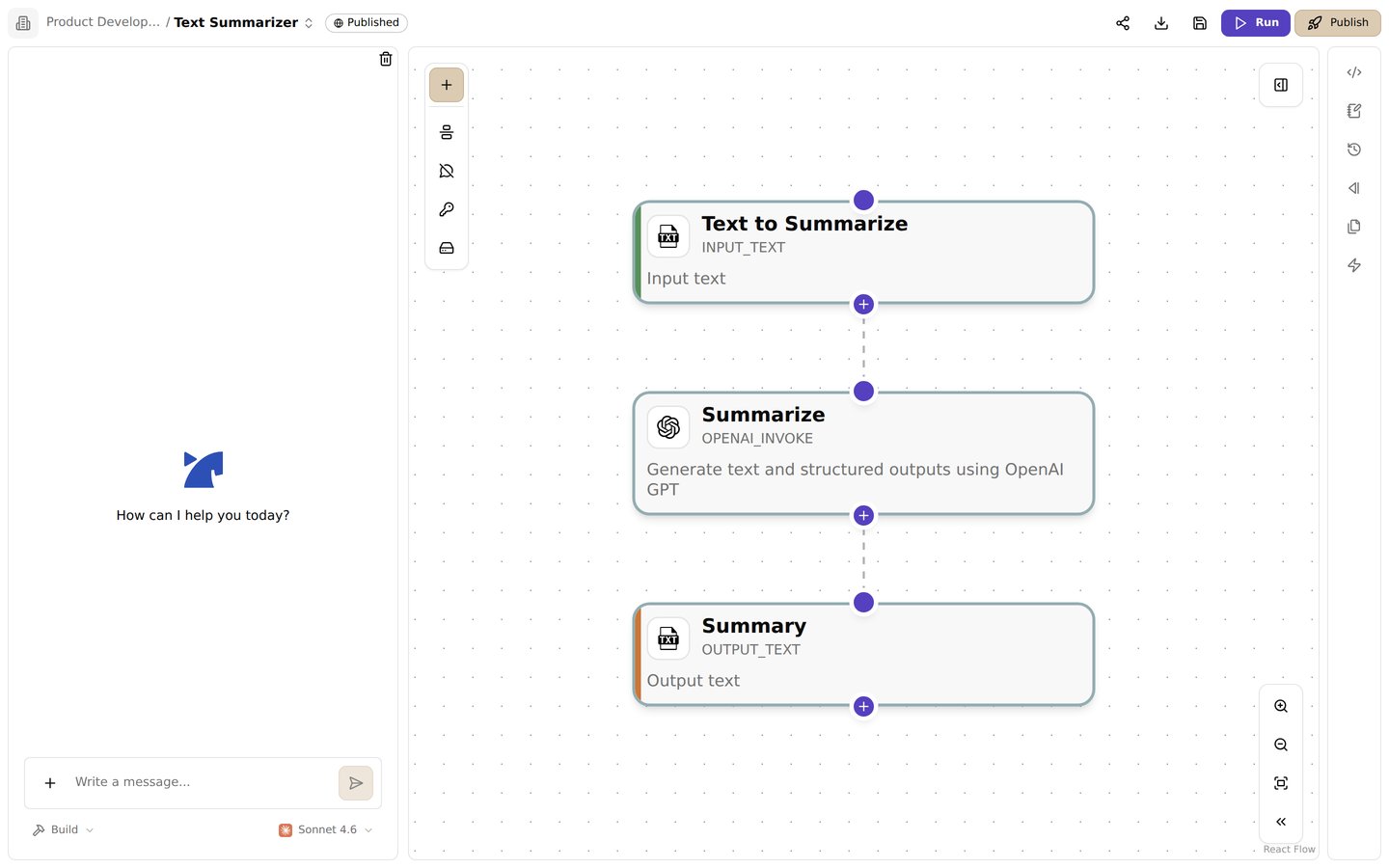
The flow editor. Edit steps visually on the canvas, and ask the AI copilot for changes in the left chat panel
Choose chat for a first draft
Use the Jinba Copilot to create flows through natural language conversation. This method is perfect for beginners or when you want to quickly prototype ideas. Best for:- Beginners learning Jinba Flow
- Quick prototyping
- Natural language interaction
- Getting started without technical knowledge
Choose the graph editor to inspect and connect steps
Use the visual drag-and-drop graph editor to build flows by connecting pre-built modules. This method provides a visual approach to flow creation. Best for:- Building flows with existing tools
- Understanding flow structure
- Quick assembly of common patterns
Choose YAML to edit the manifest directly
Write manifests directly in YAML format for complete control over your flows. This method offers the most flexibility and power. Best for:- Advanced users
- Custom tool integration
- Complex workflows
- Complete control over execution
Move between the three workflow views
- Start with Chat Panel if you’re new to Jinba Flow or want to quickly explore possibilities
- Use Graph Editor (Drag & Drop) if you prefer visual interfaces and want to work with existing tools
- Choose YAML Coding Panel if you need full control and are comfortable with YAML configuration