

 Jinba Flow
 Jinba App
 Jinba Toolbox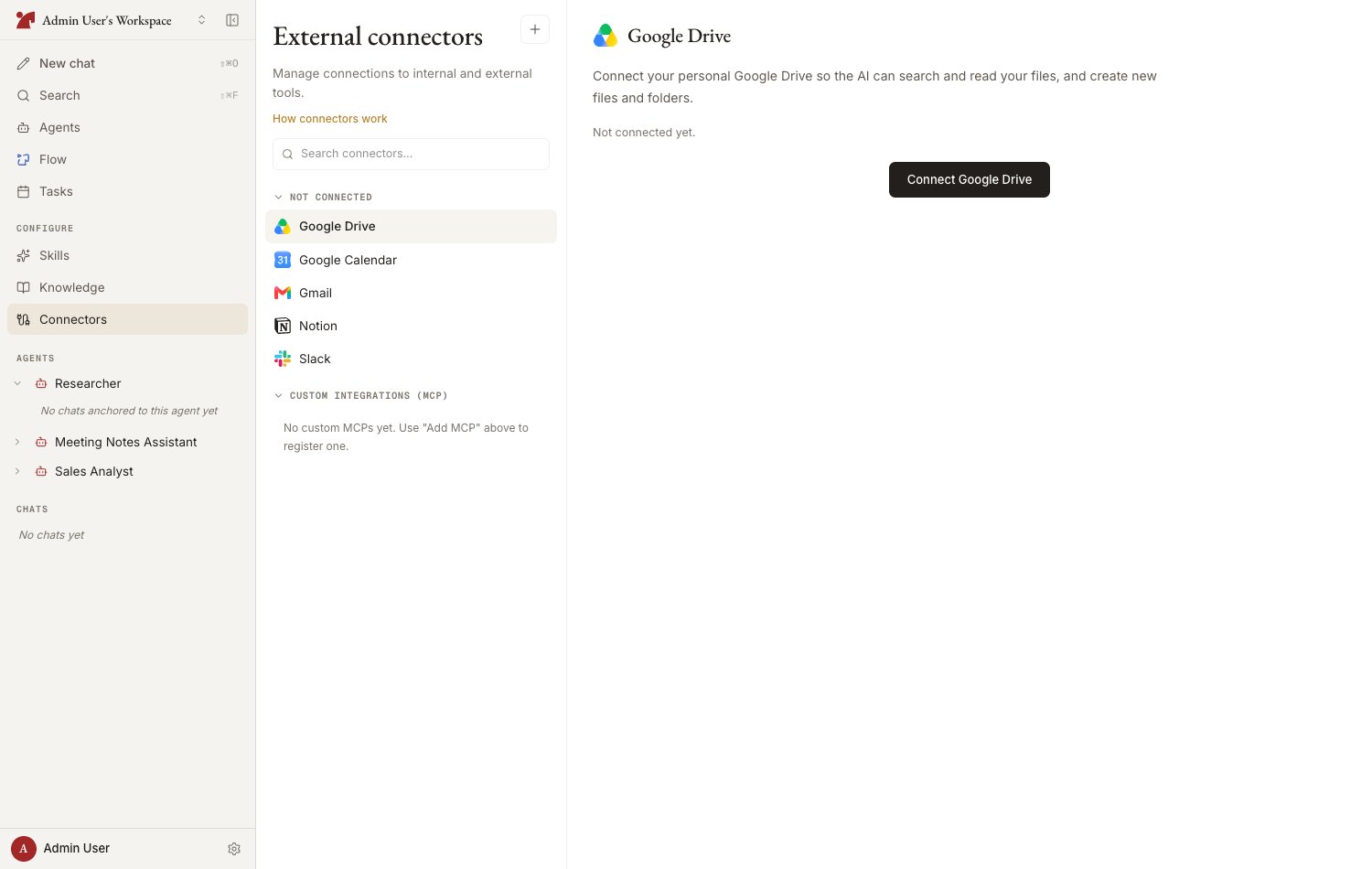
Types of connections
Personal connectors
Connect your own accounts — Gmail, Slack, Google Calendar, Notion, and more — and let the AI act on your behalf
jinba-flow integration
Call jinba-flow workflows as tools for the AI, or turn on AI operation to let it operate Jinba on your behalf. Connecting, listing and running all happen on the “Flow” page
Custom MCP
Register any MCP server, such as an internal system, for the AI to use
Related pages at a glance
Where connections live
Using connectors from chat
- The AI automatically selects and runs the tools of connectors attached to the agent, based on the conversation
- You can also name a specific tool or flow with
#in the composer - When the AI spots a connection that would be useful given the conversation, it may show a “Connector addition proposed” card. Approving saves the addition right away, and in most cases the card then reads “Ready to use in this chat” — otherwise it takes effect from your next chat
- When a service you need is not connected yet — or an existing connection has stopped working — the AI can show a connect (or reconnect) card right in the chat. Complete the authorization there and the conversation picks up where it left off. Both personal connectors and jinba-flow workspaces support this
Managing connections
- Refresh — refetch the tool list from a jinba-flow connection: in the workspace’s index on the Flow page, or beside the connection in an agent’s Flow section. jinba-flow connections also re-sync automatically when you open the Flow page or the composer’s connector picker, so the manual action is mostly a fallback
- Disconnect — remove the connection. The associated MCP server and its tools are deleted too
- Unavailable — a jinba-flow connection whose workspace can no longer be reached is hidden from the Flow page’s “Connected” list by default; turn on “Show inaccessible workspaces” in the ”…” menu beside the heading to see it marked “Unavailable.” Ask the Flow workspace owner to invite you as a member or add an external access rule, then “Refresh” (jinba-flow integration)
- Blocked by your organization or workspace — depending on your organization’s policy, some connectors show “Your organization has blocked this connector.”; a workspace owner can also block Slack or Notion for one workspace under Settings > Workspace > Connectors, in which case the card reads “This connector is blocked by your workspace’s settings.” and carries a “Blocked” badge. A blocked connector cannot be connected, and even one that was connected earlier is not used by the AI while it stays blocked. Contact your organization’s administrator or workspace owner (Workspace settings)