

 Jinba Flow
 Jinba App
 Jinba Toolbox
What is Agent Builder
Agent Builder is the screen for creating and editing AI agents. You write the agent’s instructions in an editor and configure its connectors, files and schedules in the settings panel.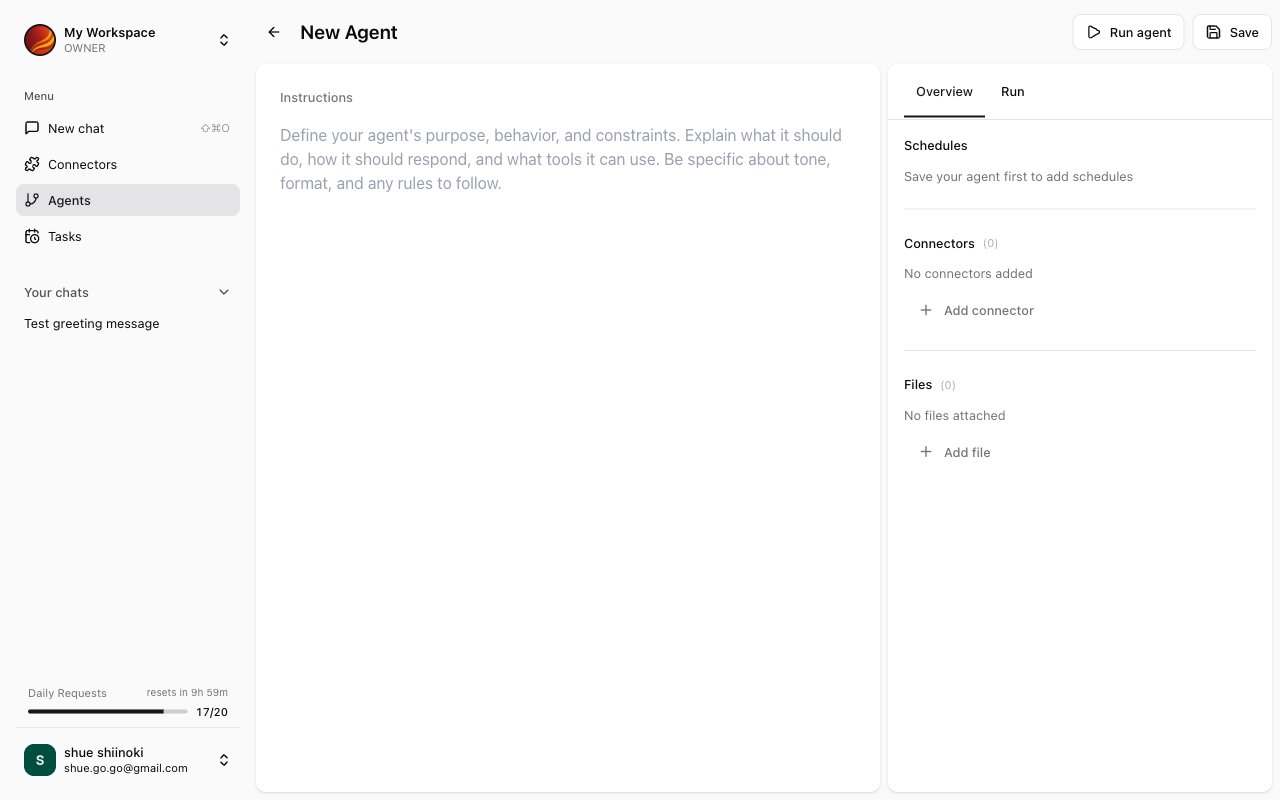
Opening Agent Builder
For New Creation
1
Open Agent Management Screen
Select “Agents” from the side menu.
2
Click 'Create Agent'
Click the “Create Agent” button at the top of the screen (or the “Create” shortcut shown when hovering “Agents” in the side panel).
3
Enter Name and Description
In the “Create New Agent” dialog, enter a name and an optional description and click “Create”. Agent Builder opens for the new agent.
Editing Existing Agents
1
Select Agent to Edit from List
Click the pencil icon on the agent card, or select “Edit” from its settings menu (⋮).
Screen Layout
Agent Builder consists of the following areas:Writing Instructions
Write the agent’s instructions in the “Instructions” editor. The “AI Instruction Assistant” button opens a chat where you describe what the agent should do; the generated instructions can be inserted with “Apply to Editor”.Example Instructions
Connector Reference Settings
Configure the connectors to be used by the agent.1
Open Connector Settings
Find the “Connectors” section in the settings panel.
2
Add Connectors
Click “Add connector” and pick the installed connectors (or individual tools) you want to use with this agent.
3
Save Settings
The selected connectors are listed in the section with their tool count. Click “Save” to keep the change.
When connectors are configured, the selected connectors become automatically available in chats using this agent.
File Reference Settings
Configure files for the agent to reference.1
Open File Settings
Find the “Files” section in the settings panel.
2
Upload Files
Click the “Add file” button and upload the files you want the agent to reference.
3
Confirm Files
Uploaded files are displayed in the list.
Reference File Examples
- FAQ Documents: Information that forms the basis for customer support agent responses
- Report Templates: Sample output formats
- Business Manuals: Procedure and policy references
Saving Agents
After completing the settings, save the agent.1
Check the Agent Name
Click the agent name in the header to rename it if needed.
2
Click 'Save' Button
Click the “Save” button at the top of the screen to save. Instructions are required.
3
Versions
Each save creates a new version. The “Versions” tab lists them with the reason (Created / Updated / Published / Unpublished), who saved them and when, and the instructions, tools and files of each version.
Running Agents (Testing)
You can test run the agent before or after saving.1
Click 'Run' Button
Click the “Run” button in the Agent Builder header.
2
Test in the Run Tab
The “Run” tab opens with a message input. Send actual questions to verify the behavior; the output appears in the same tab.
If there are no issues with the test run, save the agent and proceed with publishing preparations.
Troubleshooting
Instructions not being applied
Instructions not being applied
- Try describing the instructions more specifically
- Enter in a format that’s easier for the AI to understand
Cannot select connector
Cannot select connector
- Verify the connector is installed
- Check the connector’s connection status
Cannot upload file
Cannot upload file
- Verify the file format is supported
- Check if the file size exceeds the limit