

 Jinba Flow
 Jinba App
 Jinba Toolbox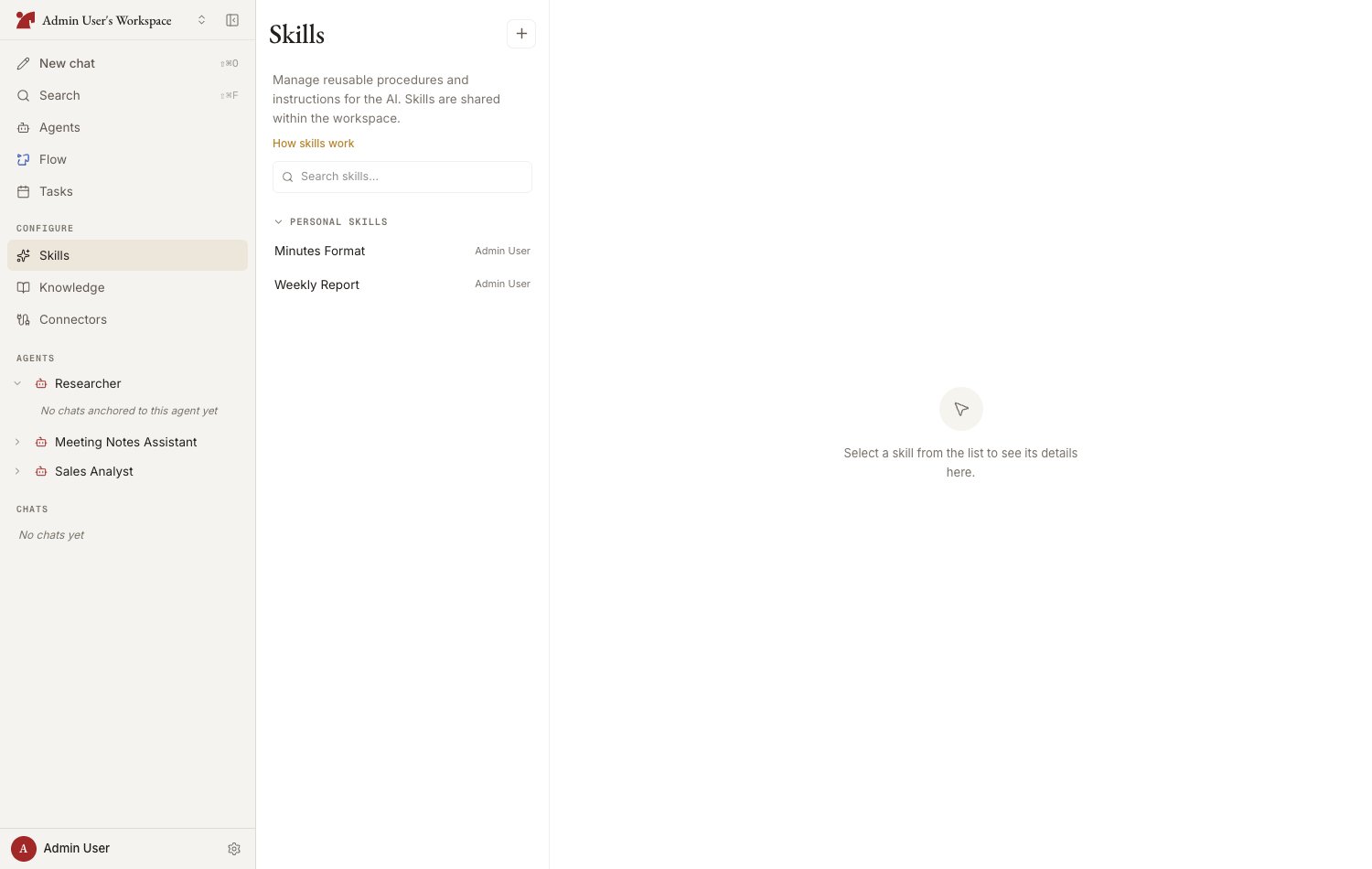
The detail drawer
In card view — and in list view on a narrow window — a skill’s details open in a drawer from the right.- “Expand” in the drawer header widens it to nearly the full window, and “Collapse” brings it back. The choice is remembered on that device, carries over to the next skill you open, and the editor inherits it too
- Drag the handle on the drawer’s left edge to set the width yourself, between 420 px and 92% of the window. The arrow keys move it 16 px at a time (four times that with Shift), Home and End go to either end, and a double-click restores the default width
- A width you drag lasts only while that drawer is open — it is not saved. The mobile bottom sheet has no handle
Anatomy of a skill
A skill follows the SKILL.md format: metadata (frontmatter) plus a body.Where skills are saved (scope)
You can promote (agent-specific → shared) or demote (shared → agent-specific) a skill later. To tweak a shared skill for one agent, use “Copy and edit for this agent only” (fork).
Attaching a workspace-shared skill to an agent works from the Skills section of the agent’s configuration panel — or straight from a chat with the agent (Create Skills from Chat).
Four ways to create a skill
Write it in the editor
Write SKILL.md directly from “New skill” > “Create manually” on the Skills page
Have the AI generate it
Enter a name and description, then “Auto-generate body” — or pick “New skill” > “Create with AI” to work it out in a chat
Import a .md file
Import an existing SKILL.md by drag & drop or paste
Accept a suggestion from chat
The AI suggests turning procedures established in conversation into skills
Limits
A single agent can have at most 20 skills attached, and the workspace catalog is capped at the same number. You do not have to count them yourself:- The agent’s “Add skills” picker shows the headroom as “N / 20 left”
- The Skills page adds an “n / 20” counter beside the page title once two or fewer slots are left
- An in-chat skill suggestion that would go over the limit says so and names the number
Version history
A workspace skill’s detail view shows its description, source, how many agents use it, an “Invocations” count, and the body. The Invocations figure counts how many AI turns have loaded this skill since counting began (several reads within one turn count once). The body preview keeps the line breaks you wrote — a lone newline renders as a line break rather than collapsing into a space (the same in the editor’s Preview tab and an agent’s Instructions preview). Past versions are reached from the “Select a version” pulldown in the detail header; the latest is marked “Current” and the one on screen “Shown.”- The pulldown lists past versions with what produced each one: Created, Edited, Updated from chat, Updated by AI, Restored, or Initial version. “Load earlier versions” pulls in more
- Open a version to read its frontmatter (name, description, allowed tools) and body exactly as they were then; while an older version is shown, the header carries that version’s name and the ”…” menu is hidden
- “Restore this version” brings those contents back as a new latest version — your current content is not discarded, it stays in the history. Agents in the workspace that have the skill attached move to the new latest version automatically
- An agent-specific skill has the same pulldown and Restore button when you open it from the agent’s configuration panel (Skills section), provided you can edit the agent. A workspace-shared skill opened from there shows the plain detail — its history lives on the Skills page