

 Jinba Flow
 Jinba App
 Jinba Toolbox
What are Jinba Flow Connectors
Jinba Flow is an external workflow service that can integrate with Jinba App. When you connect a Jinba Flow workspace to Jinba App, the flows published in that workspace are installed as connectors and can be used from chat.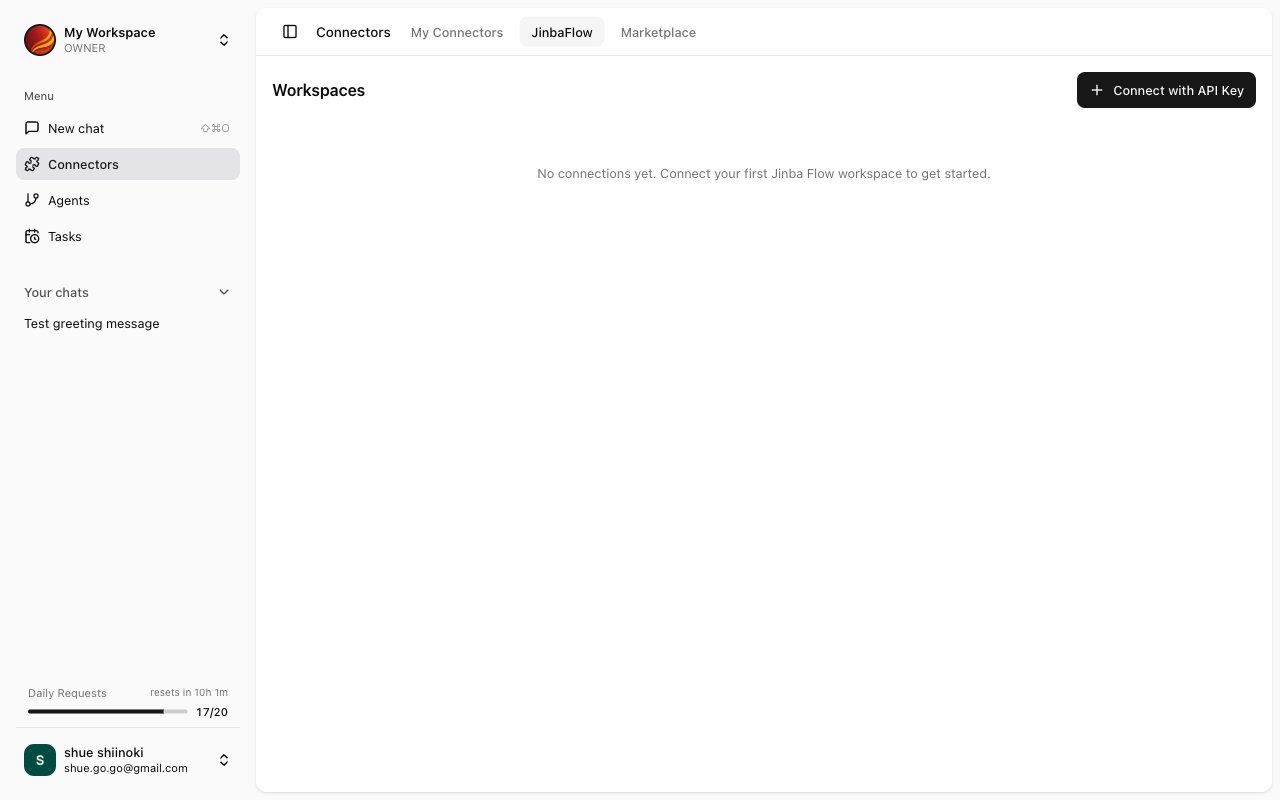
Jinba Flow Workspace List
Connected workspaces are displayed in the “Jinba Flow” tab of the Connector Management screen (“Jinba Flow Workspaces”). You can search the list and sort it by “Default” or “Most installed”. Each workspace card displays the following information:Connecting a Jinba Flow Workspace
There are two ways to connect a workspace.Connect with API Key
1
Click 'Connect with API Key'
Click the “Connect with API Key” button at the top of the Jinba Flow tab. The “Connect to Jinba Flow” dialog opens.
2
Enter the Jinba Flow API Key
Paste the API key into the “Jinba Flow API Key” field. You can find the key in the Jinba Flow workspace settings page (“Go to Jinba Flow Settings” link).
3
Connection Complete
“Workspace connected successfully” is shown, and the workspace’s published flows are installed as connectors in My Connectors.
Connect with JWT
When your Jinba App workspace has been granted access in the Jinba Flow workspace’s “JWT Access Rules”, that workspace appears in the list as not yet connected. Click “Connect with JWT” on the card to complete the integration without an API key.A workspace connected with an API key that also has JWT access can be switched with “Migrate to JWT Authentication” in the card menu. The tool run history is kept.
Refreshing Connection
When flows have been published or changed in Jinba Flow, refresh the connection to sync them to Jinba App.When Refresh is Needed
- When the card shows “Updates available. Refresh to sync latest Flows.”
- When flows have been added or changed in Jinba Flow
- When connection errors occur
Refresh Steps
1
Open the Card Menu
Click the menu (⋮) on the workspace card in the Jinba Flow tab.
2
Select 'Refresh'
Select “Refresh” from the menu.
3
Confirm Completion
“Workspace refreshed successfully” is shown when the refresh is complete.
Disconnecting
Disconnecting a Jinba Flow workspace removes all connectors installed from it.Disconnect Steps
1
Open the Card Menu
Click the menu (⋮) on the workspace card in the Jinba Flow tab.
2
Select 'Delete'
Select “Delete” from the menu.
3
Confirmation Dialog
The dialog “Are you sure you want to disconnect this workspace? All associated connectors will be removed.” appears. Click “Delete” to confirm.
Troubleshooting
Jinba Flow connector not appearing in the list
Jinba Flow connector not appearing in the list
Please check the following:
- Is the flow published in Jinba Flow? Only published flows are installed as connectors (“This workspace has no connectors. Try refreshing.”)
- Has the workspace been refreshed since the flow was published?
- For JWT connections, has your Jinba App workspace been granted access in the Jinba Flow “JWT Access Rules”?
Connection fails
Connection fails
- Check the API key (“Failed to connect to Jinba Flow. Please check your API key and try again.”)
- “This API key is already connected” means the workspace is already in the list
- Wait a moment and try again
- If the problem persists, contact support
Changes not reflected after refresh
Changes not reflected after refresh
- Verify the changes have been saved in Jinba Flow
- This may be due to cache. Try reloading the browser