> ## Documentation Index
> Fetch the complete documentation index at: https://docs.jinba.io/llms.txt
> Use this file to discover all available pages before exploring further.
# First Login
> From the invitation email to your first workspace
Before you can use Jinba App Neo for the first time, you need to **join your organization** — create an account, verify your email address, and accept the invitation. Accounts are managed by Jinba's authentication service, **JinbaAuth** ([https://auth.jinba.io](https://auth.jinba.io)), and are shared across Jinba services such as Jinba App Neo and Jinba Flow.
Jinba App Neo is in Beta. Access requires an invitation to an organization, or an account issued by your administrator.
**If your organization uses SSO** — when single sign-on is enabled for your organization, steps 1–4 (joining through an invitation email) do not apply. Open the sign-in URL your administrator gave you and continue from step 5. Ask your administrator or your Jinba representative which path applies to you.
## Overview
```mermaid theme={null}
graph LR
A["① Receive invitation"] --> B["② Sign up"]
B --> C["③ Verify email"]
C --> D["④ Accept invitation"]
D --> E["⑤ Sign in to Neo"]
E --> F["⑥ Open your workspace"]
```
| Step | Where | What you do |
| ------------------------------- | ------------------------------------------------------------------ | ------------------------------------------------------ |
| 1. Receive the invitation email | Your mail client | Open the invitation and check the links it contains |
| 2. Sign up | [auth.jinba.io/signup](https://auth.jinba.io/signup) | Create an account with the invited email address |
| 3. Verify your email | Your mail client | Open the link in the verification email (**required**) |
| 4. Accept the invitation | [auth.jinba.io/organizations](https://auth.jinba.io/organizations) | Click "Accept" under "Pending invites" |
| 5. Sign in to Neo | [neo.jinba.io](https://neo.jinba.io/) | Sign in with the account you created |
| 6. Open your workspace | Jinba App Neo | Open the shared workspace (switch to it if needed) |
**If you already have a JinbaAuth account** (for example because you use Jinba Flow, and your email address is already verified), skip steps 2 and 3 and start at step 4: open the organizations link in the invitation email and accept the invitation.
## 1. Receive the invitation email
When an administrator invites you to an organization, you receive an email from **Jinba `noreply@jinba.ai`** with the subject **"Invitation to join \"**.
The body contains the inviter's name, the role you are granted, and **two links**.
```text Invitation email body theme={null}
invited you to join .
Role: MEMBER
Open the organizations page to review and accept the invitation:
https://auth.jinba.io/organizations
If you are not signed in yet, sign in with the invited email address first.
If you do not have an account yet, sign up first:
https://auth.jinba.io/signup
```
The language of the invitation email follows **the UI language of the person who sent it**, not your own. If it was sent from a Japanese console, the subject reads 「〈組織名〉 への招待」 and the body is the Japanese translation of the text above. Search your inbox for both if you cannot find it.
* **No account yet** — use the second link (`/signup`) to register (go to step 2)
* **Already have an account** — open the first link (`/organizations`) and accept the invitation (go to step 4)
Invitations expire after **7 days**. If yours has expired, contact your Jinba representative — an invitation can only be resent once it has expired. If the email never arrived, check your spam folder first.
## 2. Sign up
Open [https://auth.jinba.io/signup](https://auth.jinba.io/signup) to reach the **Create Account** screen, enter your name, email address, and password, then click **Create account**. If the sign-in screen appears instead, use **"Don't have an account?"** at the bottom to switch to sign-up.
**Register with the exact email address that received the invitation.** Invitations are bound to a specific address — if you sign up with a different one you will not be able to accept the invitation (the comparison is case-insensitive).
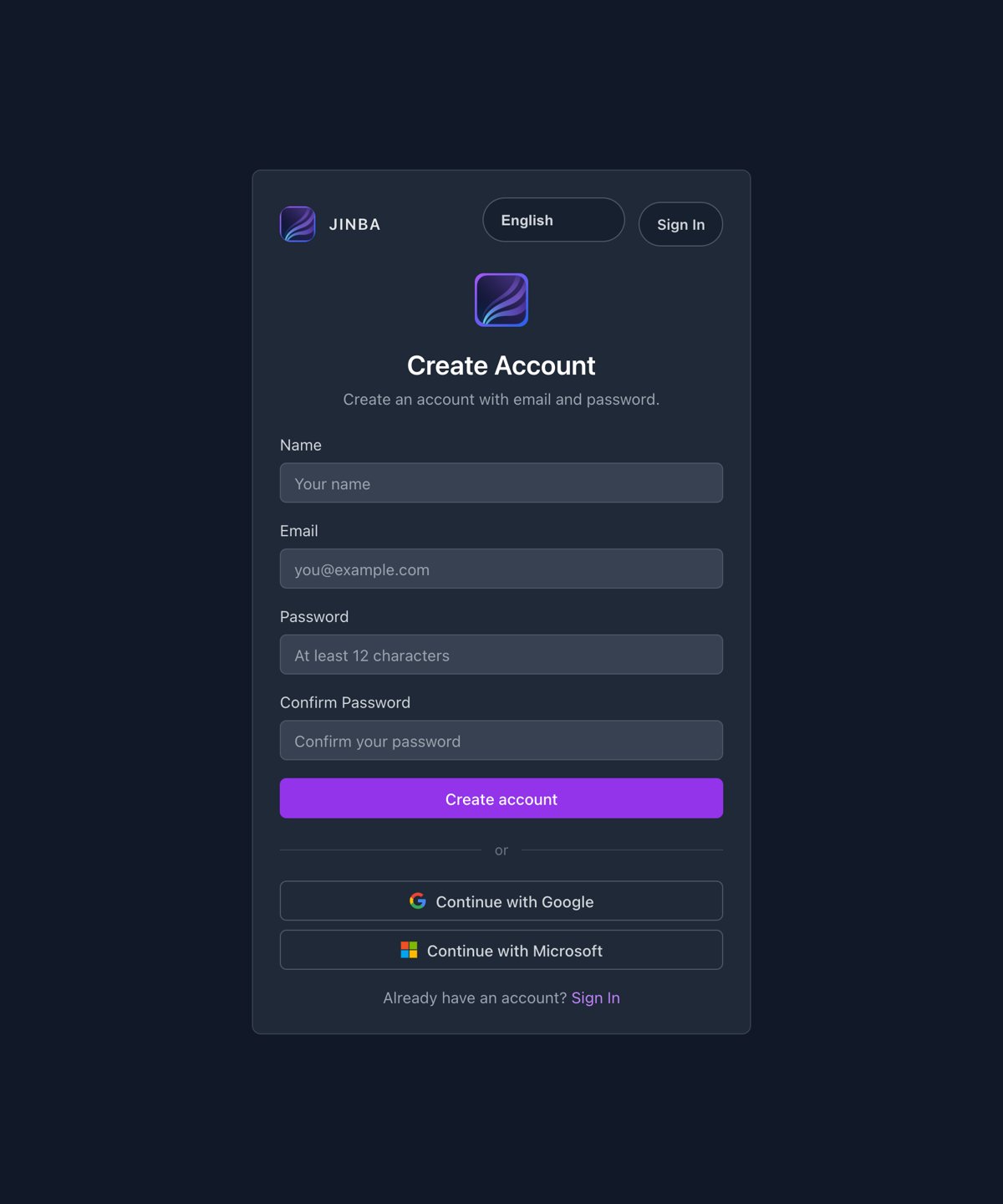 You can also sign up with a **Google or Microsoft account** ("Continue with Google" / "Continue with Microsoft"). In that case, pick the account whose address matches the invitation.
Passwords must satisfy the following policy:
| Requirement | Detail |
| ----------------- | ------------------------------------------------------------------ |
| Length | **At least 12 characters** (up to 128) |
| Character classes | Must contain **all four**: lowercase, uppercase, digit, and symbol |
| Reuse | Your 5 most recently used passwords cannot be reused |
| Breach screening | Passwords known from public data breaches are rejected |
**Creating the account does not sign you in.** Continue with the email verification in step 3.
## 3. Verify your email address
After the account is created you receive a verification email with the subject **"Verify your email"** (this message is **English only**). Open the link in it.
* Opening the link **signs you in automatically** and takes you straight to the organizations page ([auth.jinba.io/organizations](https://auth.jinba.io/organizations))
* The link is valid for **1 hour**. If it has expired, attempt to sign in at [https://auth.jinba.io](https://auth.jinba.io) and a fresh verification email is sent
**This step is mandatory.** Until your address is verified, clicking "Accept" in step 4 fails with an error and you cannot join the organization. If you signed up with a Google or Microsoft account, your address is already verified and you can skip this step.
## 4. Accept the invitation to your organization
Open [https://auth.jinba.io/organizations](https://auth.jinba.io/organizations) (the **Organizations** screen).
Your organization appears under **Pending invites** — click **Accept**. After accepting, you join the organization and it is listed under **Your memberships**.
* This acceptance is the shared "join an organization" step for all Jinba services, not just Jinba App Neo. Until it is done, signing in at step 5 will not show your organization's workspaces
* Only invitations addressed to the email you are signed in with are listed
* **Your memberships** lists shared organizations only. The personal organization created for you at sign-up is not shown
## 5. Sign in to Jinba App Neo
Go to [https://neo.jinba.io/](https://neo.jinba.io/) and authenticate with one of the following:
* **Email address and password**
* **Google account**
* **Microsoft account**
* **SSO** (if enabled for your organization)
You can also sign up with a **Google or Microsoft account** ("Continue with Google" / "Continue with Microsoft"). In that case, pick the account whose address matches the invitation.
Passwords must satisfy the following policy:
| Requirement | Detail |
| ----------------- | ------------------------------------------------------------------ |
| Length | **At least 12 characters** (up to 128) |
| Character classes | Must contain **all four**: lowercase, uppercase, digit, and symbol |
| Reuse | Your 5 most recently used passwords cannot be reused |
| Breach screening | Passwords known from public data breaches are rejected |
**Creating the account does not sign you in.** Continue with the email verification in step 3.
## 3. Verify your email address
After the account is created you receive a verification email with the subject **"Verify your email"** (this message is **English only**). Open the link in it.
* Opening the link **signs you in automatically** and takes you straight to the organizations page ([auth.jinba.io/organizations](https://auth.jinba.io/organizations))
* The link is valid for **1 hour**. If it has expired, attempt to sign in at [https://auth.jinba.io](https://auth.jinba.io) and a fresh verification email is sent
**This step is mandatory.** Until your address is verified, clicking "Accept" in step 4 fails with an error and you cannot join the organization. If you signed up with a Google or Microsoft account, your address is already verified and you can skip this step.
## 4. Accept the invitation to your organization
Open [https://auth.jinba.io/organizations](https://auth.jinba.io/organizations) (the **Organizations** screen).
Your organization appears under **Pending invites** — click **Accept**. After accepting, you join the organization and it is listed under **Your memberships**.
* This acceptance is the shared "join an organization" step for all Jinba services, not just Jinba App Neo. Until it is done, signing in at step 5 will not show your organization's workspaces
* Only invitations addressed to the email you are signed in with are listed
* **Your memberships** lists shared organizations only. The personal organization created for you at sign-up is not shown
## 5. Sign in to Jinba App Neo
Go to [https://neo.jinba.io/](https://neo.jinba.io/) and authenticate with one of the following:
* **Email address and password**
* **Google account**
* **Microsoft account**
* **SSO** (if enabled for your organization)
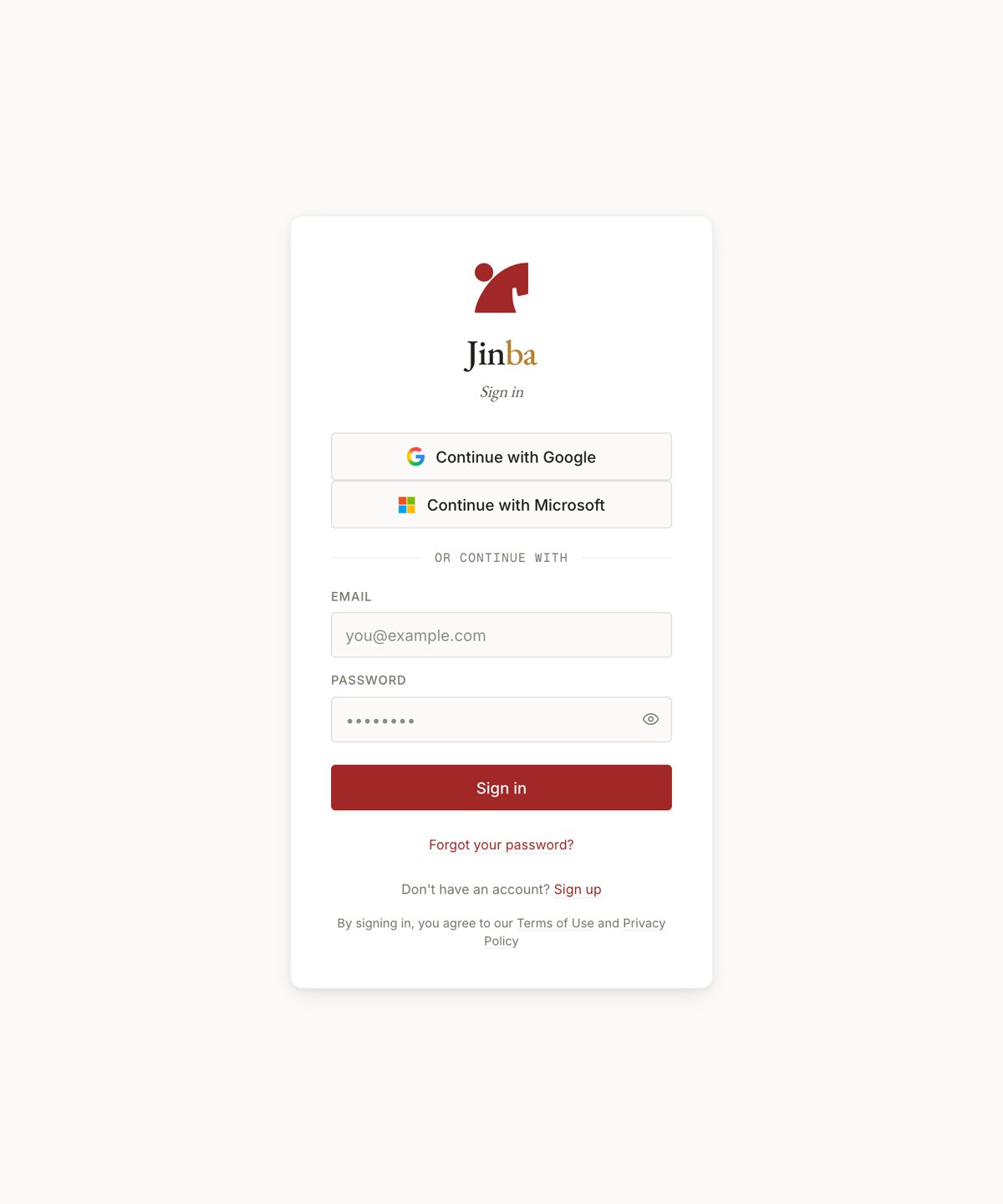 Bookmark [https://neo.jinba.io/](https://neo.jinba.io/) so you can get back to it quickly.
## 6. Open your workspace
On your first sign-in, a workspace of your own (**“\’s Workspace”**) is created automatically. Because that workspace is private to you, agents, skills, and knowledge shared across your organization do not appear there.
If you were invited to a shared workspace beforehand, you also become a member of it automatically on that first sign-in. The **workspace name at the top of the sidebar** tells you which workspace you are currently in.
To switch to the shared workspace, click the **workspace name button at the top of the sidebar**. It lists your current organization and the workspaces you belong to in it — select the shared one. The agents, skills, and knowledge shared with your organization then become available.
If the shared workspace is not listed, check that step 4 is complete and that you have been added as a member of that workspace. Workspace members are added by a workspace owner (see [Workspace settings](/en/pages/jinba_app_neo/settings/workspace)).
## Troubleshooting
Check your spam folder and search for the sender `noreply@jinba.ai`. The subject is either "**Invitation to join \**" or its Japanese equivalent 「**〈組織名〉 への招待**」 (see step 1). If it is still missing, contact your Jinba representative — an invitation can be resent once it has expired (7 days).
The most common cause is that **step 3 (email verification) is not complete**. Open the link in the "Verify your email" message and try again. If you cannot find that email, attempt to sign in at [auth.jinba.io](https://auth.jinba.io) and a new one is sent.
If it still fails, the invitation may have expired (7 days), or it may have already been accepted or cancelled. Contact your Jinba representative.
You may have registered with a different address than the one that received the invitation — invitations are bound to a specific email address (compared case-insensitively). Let your Jinba representative know which address you use and we will reissue the invitation to it.
Note that the personal organization created for you at sign-up is never listed under "Your memberships".
Right after signing in you may be in your own private workspace. Switch using the workspace name button at the top of the sidebar (see step 6). If the workspace is not listed, ask its owner to add you as a member.
Passwords need at least 12 characters and must include lowercase, uppercase, digits, and symbols. Previously used passwords and passwords known from public data breaches are also rejected. If a compliant password is still rejected, try a different one.
An SSO session can be locked to the organization you signed in with. To switch to another organization, sign out and sign in again.
## Next steps
Send your first chat and create an agent
Understand how agents, skills, connectors, knowledge, and memory fit together
Review member invitations, roles, and workspace switching
For administrators: how to issue, resend, and cancel invitations
Bookmark [https://neo.jinba.io/](https://neo.jinba.io/) so you can get back to it quickly.
## 6. Open your workspace
On your first sign-in, a workspace of your own (**“\’s Workspace”**) is created automatically. Because that workspace is private to you, agents, skills, and knowledge shared across your organization do not appear there.
If you were invited to a shared workspace beforehand, you also become a member of it automatically on that first sign-in. The **workspace name at the top of the sidebar** tells you which workspace you are currently in.
To switch to the shared workspace, click the **workspace name button at the top of the sidebar**. It lists your current organization and the workspaces you belong to in it — select the shared one. The agents, skills, and knowledge shared with your organization then become available.
If the shared workspace is not listed, check that step 4 is complete and that you have been added as a member of that workspace. Workspace members are added by a workspace owner (see [Workspace settings](/en/pages/jinba_app_neo/settings/workspace)).
## Troubleshooting
Check your spam folder and search for the sender `noreply@jinba.ai`. The subject is either "**Invitation to join \**" or its Japanese equivalent 「**〈組織名〉 への招待**」 (see step 1). If it is still missing, contact your Jinba representative — an invitation can be resent once it has expired (7 days).
The most common cause is that **step 3 (email verification) is not complete**. Open the link in the "Verify your email" message and try again. If you cannot find that email, attempt to sign in at [auth.jinba.io](https://auth.jinba.io) and a new one is sent.
If it still fails, the invitation may have expired (7 days), or it may have already been accepted or cancelled. Contact your Jinba representative.
You may have registered with a different address than the one that received the invitation — invitations are bound to a specific email address (compared case-insensitively). Let your Jinba representative know which address you use and we will reissue the invitation to it.
Note that the personal organization created for you at sign-up is never listed under "Your memberships".
Right after signing in you may be in your own private workspace. Switch using the workspace name button at the top of the sidebar (see step 6). If the workspace is not listed, ask its owner to add you as a member.
Passwords need at least 12 characters and must include lowercase, uppercase, digits, and symbols. Previously used passwords and passwords known from public data breaches are also rejected. If a compliant password is still rejected, try a different one.
An SSO session can be locked to the organization you signed in with. To switch to another organization, sign out and sign in again.
## Next steps
Send your first chat and create an agent
Understand how agents, skills, connectors, knowledge, and memory fit together
Review member invitations, roles, and workspace switching
For administrators: how to issue, resend, and cancel invitations