> ## Documentation Index
> Fetch the complete documentation index at: https://docs.jinba.io/llms.txt
> Use this file to discover all available pages before exploring further.
# Agents overview
> What agents are and how to use them by purpose
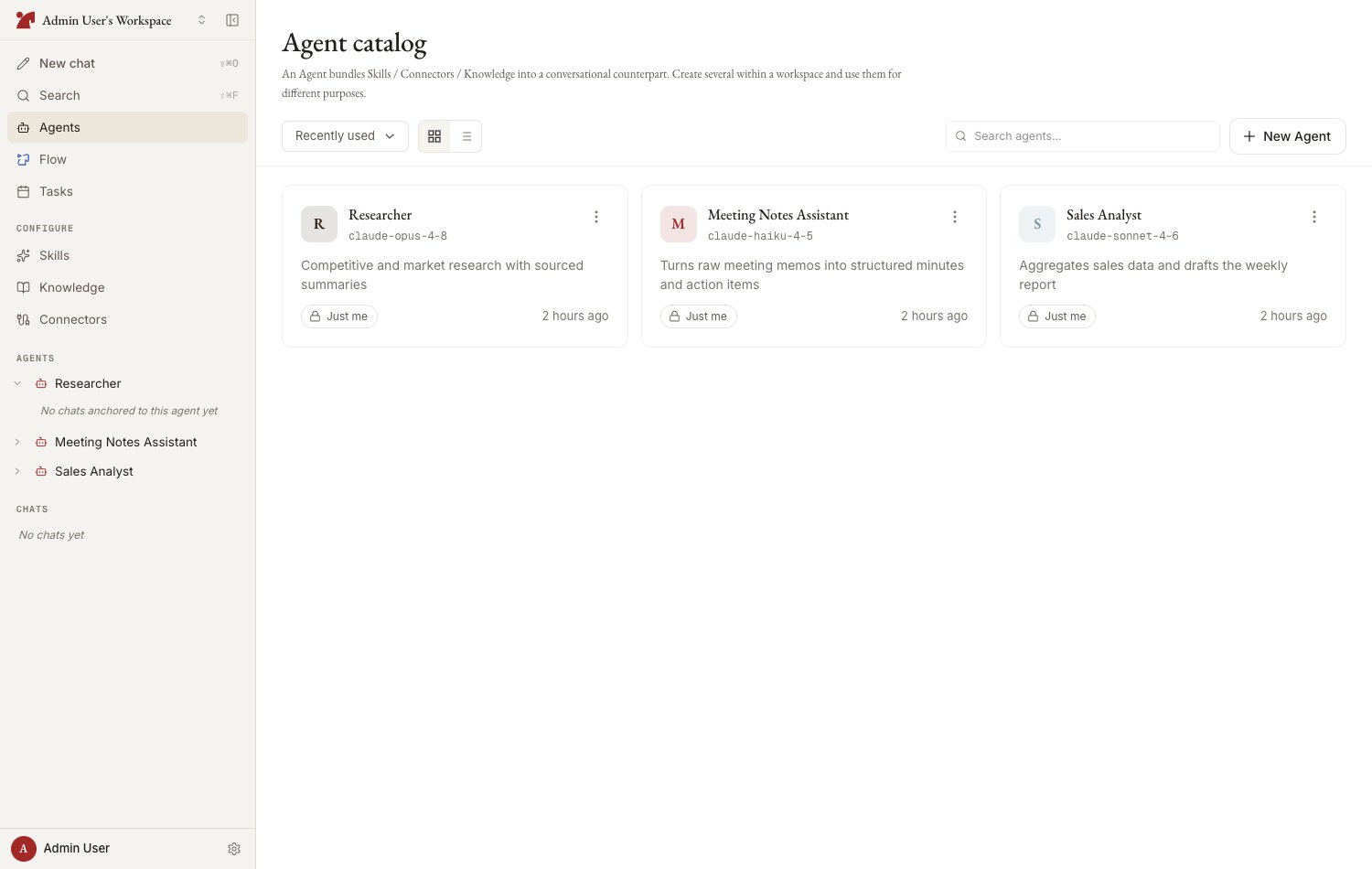
An **agent** is a conversation partner that bundles skills, connectors, and knowledge. Create several in a workspace and switch between them by purpose.
 ## What an agent has
| Component | Description |
| ----------------- | ------------------------------------------------------------------------------------------- |
| **Model** | The Claude model that generates responses (Opus 5 / Sonnet 5 / Haiku 4.5) |
| **System prompt** | Instructions for behavior, tone, and constraints |
| **Skills** | Attached playbooks and instructions |
| **Connectors** | Attached external service integrations (jinba-flow, MCP) |
| **Knowledge** | Attached reference material |
| **Memory** | What the AI has learned from conversations with this agent (shared by everyone who uses it) |
## Agent list
Open the workspace's agent catalog from "Agents" in the sidebar.
* **View toggle** — grid / list
* **Sort** — recently used / creation date / name
* **Search** — filter by name
* **Pinning** — the pin toggle beside each row's or card's "…" menu pins a frequently used agent for quick access from the sidebar; the icon stays filled while it is pinned. "**Pinned first**" puts pinned agents at the top of the catalog
The view, sort, and "Pinned first" choices are remembered on the device you are using, so the catalog comes back the way you left it. A link that carries an explicit view or sort in its URL wins over the remembered choice.
## Agent detail page
Selecting an agent opens its detail page — a chat surface for that agent where you start new chats and revisit past ones. Press the **gear icon** in the header to open the **configuration panel** on the right (it can be resized by dragging its edge), organized into sections:
| Section | Contents |
| ----------------------- | ------------------------------------------------------------------------------------------------ |
| **Skills** | Attach or create skills |
| **Flow connectors** | jinba-flow workspace connections |
| **External connectors** | Custom MCP servers and other connectors |
| **Knowledge** | Attach knowledge or register agent-specific material |
| **Memory** | View and manage agent memory |
| **Settings** | Name, description, model, system prompt, avatar, version history, duplicate, archive, and delete |
The `‹` chevron beside the agent's name always goes **up to the agent catalog**, whichever screen you arrived from — use your browser's back button to retrace your steps instead.
Each section card shows a count and a short preview of what is attached. Click the card header ("Manage" / "Edit") to open the section, or click a preview row to jump straight to that item. The panel state — which section and item you have open — is reflected in the page URL, so it survives reloads and can be shared with teammates as a link.
## Permissions
* An agent's settings can be changed by its **creator**, a **workspace owner**, or members granted "Edit too" permission when the agent was shared
* Members with "Use only" permission can chat with the agent but cannot change its settings
## Next steps
Setting the name, model, and system prompt — with auto-generation
How to attach skills, connectors, and knowledge
Configuring sharing scope and permissions
Version history, archiving, and deletion
## What an agent has
| Component | Description |
| ----------------- | ------------------------------------------------------------------------------------------- |
| **Model** | The Claude model that generates responses (Opus 5 / Sonnet 5 / Haiku 4.5) |
| **System prompt** | Instructions for behavior, tone, and constraints |
| **Skills** | Attached playbooks and instructions |
| **Connectors** | Attached external service integrations (jinba-flow, MCP) |
| **Knowledge** | Attached reference material |
| **Memory** | What the AI has learned from conversations with this agent (shared by everyone who uses it) |
## Agent list
Open the workspace's agent catalog from "Agents" in the sidebar.
* **View toggle** — grid / list
* **Sort** — recently used / creation date / name
* **Search** — filter by name
* **Pinning** — the pin toggle beside each row's or card's "…" menu pins a frequently used agent for quick access from the sidebar; the icon stays filled while it is pinned. "**Pinned first**" puts pinned agents at the top of the catalog
The view, sort, and "Pinned first" choices are remembered on the device you are using, so the catalog comes back the way you left it. A link that carries an explicit view or sort in its URL wins over the remembered choice.
## Agent detail page
Selecting an agent opens its detail page — a chat surface for that agent where you start new chats and revisit past ones. Press the **gear icon** in the header to open the **configuration panel** on the right (it can be resized by dragging its edge), organized into sections:
| Section | Contents |
| ----------------------- | ------------------------------------------------------------------------------------------------ |
| **Skills** | Attach or create skills |
| **Flow connectors** | jinba-flow workspace connections |
| **External connectors** | Custom MCP servers and other connectors |
| **Knowledge** | Attach knowledge or register agent-specific material |
| **Memory** | View and manage agent memory |
| **Settings** | Name, description, model, system prompt, avatar, version history, duplicate, archive, and delete |
The `‹` chevron beside the agent's name always goes **up to the agent catalog**, whichever screen you arrived from — use your browser's back button to retrace your steps instead.
Each section card shows a count and a short preview of what is attached. Click the card header ("Manage" / "Edit") to open the section, or click a preview row to jump straight to that item. The panel state — which section and item you have open — is reflected in the page URL, so it survives reloads and can be shared with teammates as a link.
## Permissions
* An agent's settings can be changed by its **creator**, a **workspace owner**, or members granted "Edit too" permission when the agent was shared
* Members with "Use only" permission can chat with the agent but cannot change its settings
## Next steps
Setting the name, model, and system prompt — with auto-generation
How to attach skills, connectors, and knowledge
Configuring sharing scope and permissions
Version history, archiving, and deletion